Wednesday, 8 April 2020

How to analyse MySQL slow_query_log like a pro?


How to Properly log slow queries:


Tested on Mariadb 10.3 on Debian 10:

Check if slow query log is running:

MariaDB [(none)]> show global variables like  "%slow%";
+------------------------------+--------------------------------------+
| Variable_name                | Value                                                                                                                                |
+------------------------------+--------------------------------------+
| log_slow_admin_statements    | ON                                                                                                                                   |
| log_slow_disabled_statements | sp                                                                                                                                   |
| log_slow_filter              |
| log_slow_rate_limit          | 1                                                                                                                                    |
| log_slow_slave_statements    | ON                                                                                                                                   |
| log_slow_verbosity           |                                                                                                                                      |
| slow_launch_time             | 2                                                                                                                                    |
| slow_query_log               | OFF                                                                                                                                  |
| slow_query_log_file          | up-slow.log                                                                                                                          |
+------------------------------+---------------------------------


Rotate the log to avoid old data to polute your current analysis:

mv /var/lib/mysql/slow-query.log /var/lib/mysql/slow-query.log.rm1

flush logs:

MariaDB [(none)]> flush logs;
Query OK, 0 rows affected (0.000 sec)

set the log to query ALL queries:

MariaDB [(none)]> set global slow_query_log=1;

Check the long_query_time (this is the threshhold number ins seconds to save a query in slow_query_log)

 MariaDB [(none)]> select @@global.long_query_time;
+--------------------------+
| @@global.long_query_time |
+--------------------------+
|                10.000000 |
+--------------------------+
 1 row in set (0.000 sec)

Set long_query_time to zero to catch all queries. Notice that this affects performance, especially at high qps rates.

MariaDB [(none)]> set global long_query_time=0;
Query OK, 0 rows affected (0.000 sec)

Now watch slow query log size:

 ls  -lh /var/lib/mysql/up-slow.log


When the log file reached a couple fo GB, stop it:

MariaDB [(none)]> set slow_query_log=0;


Download perona query digest:

wget percona.com/get/pt-query-digest

chmod 755 pt-query-digest

Save the slow query log into a separate file:

cp  /var/lib/mysql/up-slow.log /var/lib/mysql/up-slow.log.out

And analyze the file with percona query digest:

perl  pt-query-digest /var/lib/mysql/up-slow.log


How to Properly analyze the log:

The first list gives an overview of the database activity:

# Overall: 8.31M total, 419 unique, 2.52k QPS, 9.38x concurrency _________
# Time range: 2020-04-08 09:06:28 to 10:01:24
# Attribute          total     min     max     avg     95%  stddev  median
# ============     ======= ======= ======= ======= ======= ======= =======
# Exec time         30923s       0      3s     4ms    16ms    21ms   167us
# Lock time           461s       0   385ms    55us    89us   142us    54us
# Rows sent         21.60M       0  58.01k    2.72    0.99  261.70    0.99
# Rows examine      26.66G       0   1.52M   3.36k  313.99  27.22k    0.99
# Rows affecte      38.95k       0      40    0.00       0    0.08       0
# Bytes sent        12.90G       0  23.10M   1.63k   2.27k  99.98k  874.75
# Query size         3.20G       6 464.07k  412.69  833.10 1012.18  313.99

The more interesting though is Profile of individual queries:

# Profile
# Rank Query ID                    Response time   Calls   R/Call V/M   It
# ==== =========================== =============== ======= ====== ===== ==
#    1 0xC549CF6B5AA5A6C68867CA... 6078.5728 19.7%   50213 0.1211  0.01 SELECT post_commentlike

Profile lists the queries which, altogether consumed have  %95 of the processing time.

Rank: Queries sorted by overal time taken to execute.
Response time : total time spent on this query (in milisecons and % of total time)
Calls: How many times the query is called
R/Call: Response tiem per call. Avergage response time per call.
V/M: Variance to mean ration. AKA index of dispersion.  0 no variance, 1 most variant.
Item: Abreviate version of a query.


Check queries and Index the tables when needed:

CREATE INDEX col ON tbl(col);

Source: This great video:

More info:

Thursday, 26 March 2020

Using ‘dd’ to benchmark disk performance

 To get started you should change to a directory to which you have read and write permissions. Or create and enter a new directory:
mkdir /home/bench/
cd /home/bench/
Make sure you have a few gigabytes of free disk space. Then use the following command to test the write speed of your storage:
dd if=/dev/zero of=diskbench bs=1M count=1024 conv=fdatasync
The results looks something like this from Stacklinux’s 3GB VPS:
1024+0 records in
1024+0 records out
1073741824 bytes (1.1 GB) copied, 0.553284 s, 1.9 GB/s
You’ll want this to be above 400 MB/s.

Using ‘dd’ to benchmark storage read performance

Now, lets delete the server’s buffer cache in order to measure ‘read’ speeds direct from the hard drive:
echo 3 | sudo tee /proc/sys/vm/drop_caches
Now that cache is deleted, we can test disk read performance of that ‘diskbench’ file using:
dd if=diskbench of=/dev/null bs=1M count=1024
This outputs the following:
1024+0 records in
1024+0 records out
1073741824 bytes (1.1 GB) copied, 0.425812 s, 2.5 GB/s

Using ‘dd’ to benchmark memory-buffered read performance

After running the above command, the data will be pushed to memory-buffered cache. So lets test read speeds using memory buffer by repeating the previous command:
dd if=diskbench of=/dev/null bs=1M count=1024
Which outputs the following:
1024+0 records in
1024+0 records out
1073741824 bytes (1.1 GB) copied, 0.135034 s, 8.0 GB/s
You should run this test a couple of times to a find the average. Lastly, remember to delete the 1.1GB test file using this command:
rm diskbench
If your results point to poor read/write performance you may want to look into upgrading hardware or switching your web hosts. In addition, more extensive tests can be performed using fiobonnie++ or IOzone.

Using ‘dd’ to benchmark CPU performance

If you would like to verify CPU speed and # of cores. Use the following commands:
lscpu
‘lscpu’ gathers CPU architecture information from sysfs and /proc/cpuinfo. The information includes the number of CPUs, threads, cores etc. There is also information about the CPU caches and cache sharing, family, model, bogoMIPS, byte order, and stepping.
nproc
‘nproc’ prints the number of processing units (cpu cores) available.
Now ‘dd’ can also be used for a simple CPU benchmark using:
dd if=/dev/zero bs=1M count=1024 | md5sum
The results:
1024+0 records in
1024+0 records out
1073741824 bytes (1.1 GB) copied, 2.5454 s, 422 MB/s
cd573cfaace07e7949bc0c46028904ff -
For most modern CPUs, you’ll want to see a minimum of 300 MB/s. Lower than that should prompt you to perform more accurate tests using BYTEmark or even unixbench. To sum things up, no matter your experience level, ‘dd’ can be used as a quick check into the disk, memory and CPU performance of your web server.

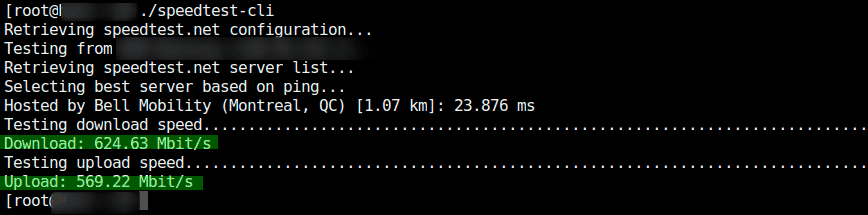
Using speedtest-cli for testing internet bandwidth

speedtest cli
speedtest-cli is a command line interface for testing internet bandwidth using speedtest.net. Issue the following commands to download and run the network speed test script:
wget -O speedtest-cli https://raw.githubusercontent.com/sivel/speedtest-cli/master/speedtest.py
chmod +x speedtest-cli
or
curl -Lo speedtest-cli https://raw.githubusercontent.com/sivel/speedtest-cli/master/speedtest.py
chmod +x speedtest-cli
./speedtest-cli
or for usage/help use:
./speedtest-cli -h

For reference, here’s a cut-an-paste of results as tested on an 8GB DigitalOcean droplet:
[root@droplet ~]# dd if=/dev/zero of=diskbench bs=1M count=1024 conv=fdatasync
1024+0 records in
1024+0 records out
1073741824 bytes (1.1 GB) copied, 2.51205 s, 427 MB/s
[root@droplet ~]# dd if=/dev/zero of=diskbench bs=1M count=1024 conv=fdatasync
1024+0 records in
1024+0 records out
1073741824 bytes (1.1 GB) copied, 2.84208 s, 378 MB/s
[root@droplet ~]# dd if=/dev/zero of=diskbench bs=1M count=1024 conv=fdatasync
1024+0 records in
1024+0 records out
1073741824 bytes (1.1 GB) copied, 2.09716 s, 512 MB/s
[root@droplet ~]# echo 3 | sudo tee /proc/sys/vm/drop_caches
3
[root@droplet ~]# dd if=diskbench of=/dev/null bs=1M count=1024
1024+0 records in
1024+0 records out
1073741824 bytes (1.1 GB) copied, 1.55411 s, 691 MB/s
[root@droplet ~]# dd if=diskbench of=/dev/null bs=1M count=1024
1024+0 records in
1024+0 records out
1073741824 bytes (1.1 GB) copied, 0.348052 s, 3.1 GB/s
[root@droplet ~]# dd if=diskbench of=/dev/null bs=1M count=1024
1024+0 records in
1024+0 records out
1073741824 bytes (1.1 GB) copied, 0.202393 s, 5.3 GB/s
[root@droplet ~]# rm diskbench
rm: remove regular file `diskbench'? y
[root@droplet ~]# nproc
4
[root@droplet ~]# dd if=/dev/zero bs=1M count=1024 | md5sum
1024+0 records in
1024+0 records out
1073741824 bytes (1.1 GB) copied, 3.34115 s, 321 MB/s
cd573cfaace07e7949bc0c46028904ff -
[root@droplet ~]# dd if=/dev/zero bs=1M count=1024 | md5sum
1024+0 records in
1024+0 records out
1073741824 bytes (1.1 GB) copied, 3.17004 s, 339 MB/s
cd573cfaace07e7949bc0c46028904ff -
[root@droplet ~]# dd if=/dev/zero bs=1M count=1024 | md5sum
1024+0 records in
1024+0 records out
1073741824 bytes (1.1 GB) copied, 3.09961 s, 346 MB/s
cd573cfaace07e7949bc0c46028904ff -
[root@droplet ~]#
Source

Wednesday, 8 January 2020

nginx config for node.js app

server {
        listen 80 default_server;
        listen [::]:80 default_server;
        root /var/www/html;
        server_name _;
    location / {
        root /data/frontend;
        try_files $uri $uri/ /index.html;
    }
        location /api {
        proxy_pass http://localhost:5000;
    }
    location /socket.io {
        proxy_set_header Upgrade $http_upgrade;
        proxy_set_header Connection "upgrade";
        proxy_http_version 1.1;
        proxy_set_header X-Forwarded-For $proxy_add_x_forwarded_for;
        proxy_set_header Host $host;
        proxy_pass http://localhost:5000;
    }
}

Thursday, 18 April 2019

Linux Hard Disk Format Command


source


Q. I’ve installed a new 250GB SATA hard disk on our office CentOS Linux server. How do I format a hard disk under Linux operating system from a shell prompt?

A.. There are total 4 steps involved for hard disk upgrade and installation procedure:
  😱
 Step #1 : Partition the new disk using fdisk command
Following command will list all detected hard disks:
# fdisk -l | grep '^Disk'
Output:
Disk /dev/sda: 251.0 GB, 251000193024 bytes
Disk /dev/sdb: 251.0 GB, 251000193024 bytes
A device name refers to the entire hard disk. For more information see Linux partition naming convention and IDE drive mappings.
To partition the disk – /dev/sdb, enter:
# fdisk /dev/sdb
The basic fdisk commands you need are:
  • m – print help
  • p – print the partition table
  • n – create a new partition
  • d – delete a partition
  • q – quit without saving changes
  • – write the new partition table and exit
Then press n, choose default primary and  then press  w to write to disk

Step#2 : Format the new disk using mkfs.ext3 command

To format Linux partitions using ext2fs on the new disk:
# mkfs.ext4 /dev/sdb1

Step#3 : Mount the new disk using mount command

First create a mount point /disk1 and use mount command to mount /dev/sdb1, enter:
# mkdir /disk1
# mount /dev/sdb1 /disk1
# df -H

Step#4 : Update /etc/fstab file

Open /etc/fstab file, enter:
# vi /etc/fstab
Append as follows:
/dev/sdb1               /disk1           ext3    defaults        1 2
Save and close the file.

Task: Label the partition

You can label the partition using e2label. For example, if you want to label the new partition /backup, enter
# e2label /dev/sdb1 /backup
You can use label name insted of partition name to mount disk using /etc/fstab:
LABEL=/backup /disk1 ext3 defaults 1 2

Note: for disks > 2TB the above method does not work, so  follow this:


parted with gpt label

Create a partition using GPT format. I've chosen to use just 1 large partition that uses the whole disk.
root@turtle:~# parted /dev/sdb
GNU Parted 2.3
Using /dev/sdb
Welcome to GNU Parted! Type 'help' to view a list of commands.
(parted) print
Error: /dev/sdb: unrecognised disk label
(parted) mklabel gpt
(parted) mkpart
Partition name?  []?
File system type?  [ext2]? ext3
Start? 0%
End? 100%
(parted) print
Model: ATA ST3000DM001-1CH1 (scsi)
Disk /dev/sdb: 3001GB
Sector size (logical/physical): 512B/4096B
Partition Table: gpt

Number  Start   End     Size    File system  Name  Flags
 1      1049kB  3001GB  3001GB

(parted) quit
Information: You may need to update /etc/fstab.

Saturday, 13 April 2019

How to run gunicorn script using systemd in Debian

Since upstart is deprecated, it is not available in Debian 9, so I had to use systemd which turned out to be quite easy:

nano  /etc/systemd/system/gunicorn.service

Create the file:

[Unit]
Description=Gunicorn Daemon
#After=network.target
StartLimitIntervalSec=0
[Service]
Type=simple
User= appuser
Group=www-data
ExecStart=/path/to/project/gunicorn.sh
#Restart=always
#RestartSec=1
#Restart=on-failure
# Configures the time to wait before service is stopped forcefully.
TimeoutStopSec=300
[Install]
WantedBy=multi-user.target
You don't need to restart the server to enable the service:

systemctl enable gunicorn
Start it:
systemctl start gunicorn

Watch it:
systemctl status gunicorn
If you made changes to gunicorn.service you need to run:

systemctl daemon-reload

before restarting the daemon with

systemctl restart gunicorn

Sunday, 6 January 2019

How to compress scanned PDF?

One problem with scanned pdfs is that the size is so bloated. One good solution to compress such files is this one script:

#!/bin/sh

gs  -q -dNOPAUSE -dBATCH -dSAFER \
    -sDEVICE=pdfwrite \
    -dCompatibilityLevel=1.3 \
    -dPDFSETTINGS=/screen \
    -dEmbedAllFonts=true \
    -dSubsetFonts=true \
    -dColorImageDownsampleType=/Bicubic \
    -dColorImageResolution=120 \
    -dGrayImageDownsampleType=/Bicubic \
    -dGrayImageResolution=72 \
    -dMonoImageDownsampleType=/Bicubic \
    -dMonoImageResolution=120 \
    -sOutputFile=out.pdf \
     $1


Here the compression rate can be changed by tweaking resolution values. I found the above gives a good compression without sacrificing the text quality.


Friday, 2 November 2018

How to cut mp4 using ffmpeg

Tested on Ubuntu 16.04

-ss is the starting time
-t is the duration

ffmpeg -i input.mp4 -ss 00:12:20 -t 00:2:00 -async 1 -strict -2  cut.mp4

Friday, 13 July 2018

How to Install Go 1.10 on Ubuntu16.04


Go is an open source programming language developed by a team at Google. It provides easy to build simple, reliable, and efficient software. This language is designed for writing servers, that’s why it is using widely these days. Go has released latest version 1.10. This tutorial will help you to install Go 1.10 on your Ubuntu 18.04 LTS, 16.04 LTS, and 14.04 LTS systems.

Step 1 – Install Go Language

Login to your Ubuntu system using ssh and upgrade to apply latest security updates there.
sudo apt-get update
sudo apt-get -y upgrade
Now download the Go language binary archive file using following link. To find and download latest version available or 32 bit version go to official download page.
wget https://dl.google.com/go/go1.10.3.linux-amd64.tar.gz
Now extract the downloaded archive and install it to the desired location on the system. For this tutorial, I am installing it under /usr/local directory. You can also put this under the home directory (for shared hosting) or other location.
sudo tar -xvf go1.10.3.linux-amd64.tar.gz
sudo mv go /usr/local

Step 2 – Setup Go Environment

Now you need to setup Go language environment variables for your project. Commonly you need to set 3 environment variables as GOROOTGOPATH and PATH.
GOROOT is the location where Go package is installed on your system.
export GOROOT=/usr/local/go
GOPATH is the location of your work directory. For example my project directory is ~/Projects/Proj1 .
export GOPATH=$HOME/Projects/Proj1
Now set the PATH variable to access go binary system wide.
export PATH=$GOPATH/bin:$GOROOT/bin:$PATH
All above environment will be set for your current session only. To make it permanent add above commands in ~/.profile file.

Step 3 – Verify Installation

At this step, you have successfully installed and configured go language on your system. First, use the following command to check Go version.
go version

go version go1.10.3 linux/amd64
Now also verify all configured environment variables using following command.
go env

GOARCH="amd64"
GOBIN=""
GOCACHE="/root/.cache/go-build"
GOEXE=""
GOHOSTARCH="amd64"
GOHOSTOS="linux"
GOOS="linux"
GOPATH="/root/Projects/Proj1"
GORACE=""
GOROOT="/usr/local/go"
GOTMPDIR=""
GOTOOLDIR="/usr/local/go/pkg/tool/linux_amd64"
GCCGO="gccgo"
CC="gcc"
CXX="g++"
CGO_ENABLED="1"
...
...

Wednesday, 27 June 2018

Deploy celery on Debian 8 using upstart

Make an upstart conf file:

nano /etc/init/celery.conf

Insert in it:

description "Celery application server handling myproject"
start on runlevel [2345]
stop on runlevel [!2345]
respawn
setuid john
setgid www-data
chdir /path/to/django/proj
exec bash celery.sh
Put `celery.sh` in /path/to/django/proj


CELERY_BIN="/home/john/.projenv/bin/celery"


# App instance to use
CELERY_APP="proj"
# Where to chdir at start.
CELERYD_CHDIR="/path/to/django/proj"
# Extra command-line arguments to the worker
CELERYD_OPTS="--time-limit=300 --concurrency=1"
# %n will be replaced with the first part of the nodename.
CELERYD_LOG_FILE="/var/log/celery/%n%I.log"
CELERYD_PID_FILE="/var/run/celery/%n.pid"
# Workers should run as an unprivileged user.
#   You need to create this user manually (or you can choose
#   a user/group combination that already exists (e.g., nobody).
CELERYD_USER="john"
CELERYD_GROUP="www-data"
# If enabled pid and log directories will be created if missing,
# and owned by the userid/group configured.
CELERY_CREATE_DIRS=1
export SECRET_KEY="somekey"

Start the deamon:

service celery start

That's it!‌

Wednesday, 20 June 2018

How to concatenate mp4 videos using ffmpeg on Ubuntu

for f in $(ls *.mp4); do
    ffmpeg -i $f -c copy -bsf:v h264_mp4toannexb -f mpegts $f.ts
done

CONCAT=$(echo $(ls *.ts) | sed -e "s/ /|/g")

ffmpeg -i "concat:$CONCAT" -c copy -bsf:a aac_adtstoasc output.mp4

rm *.ts


Source